How to play
You run a transport company on a map of the Iberian Peninsula. You build stops, terminals, depots and roads, create routes and buy buses and trucks. Passengers pay for tickets and freight pays by the tonne; vehicles, stations and credit cost money every month. Cities grow when the service is good. The Goals always show you the next step.
This guide explains everything in the game, with in-game images and the touch gestures for each part. Inside the game there is a summary in How to play, on the Main menu and in the Menu ☰.
1The company
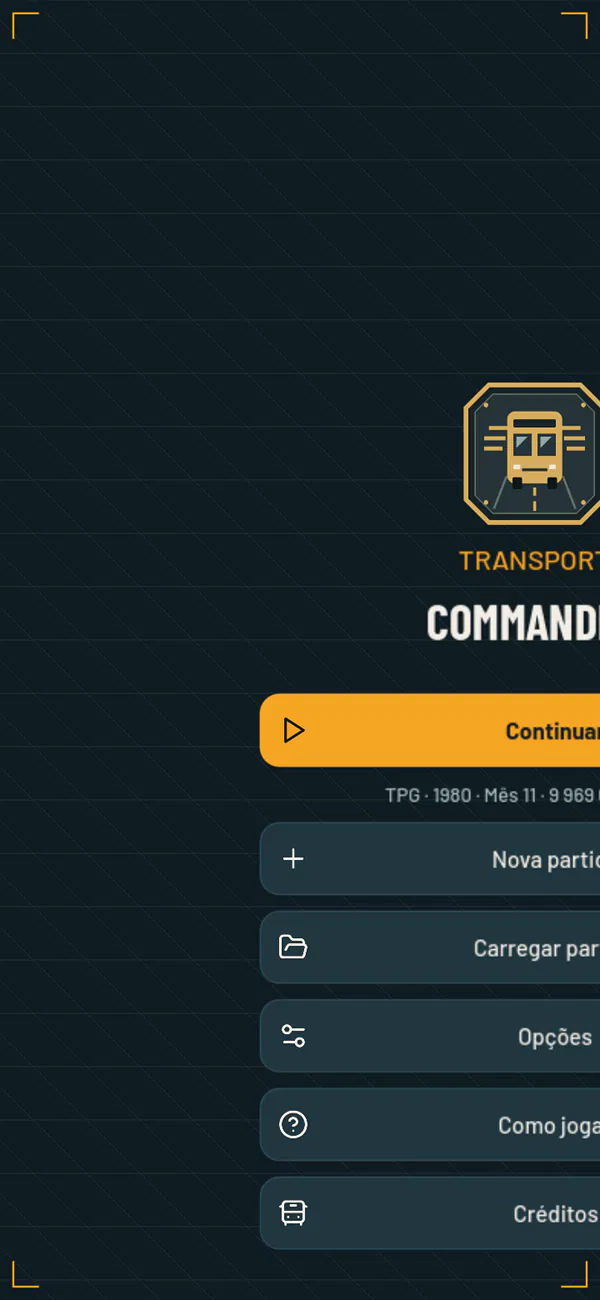
The game opens on the Main menu: Continue (the last game played), New game, Load game, Options, How to play and Credits. On a phone, the menu always stays in portrait; on a tablet, it follows the device's orientation.
New game
A new game is set up in three steps, with Next and Back:
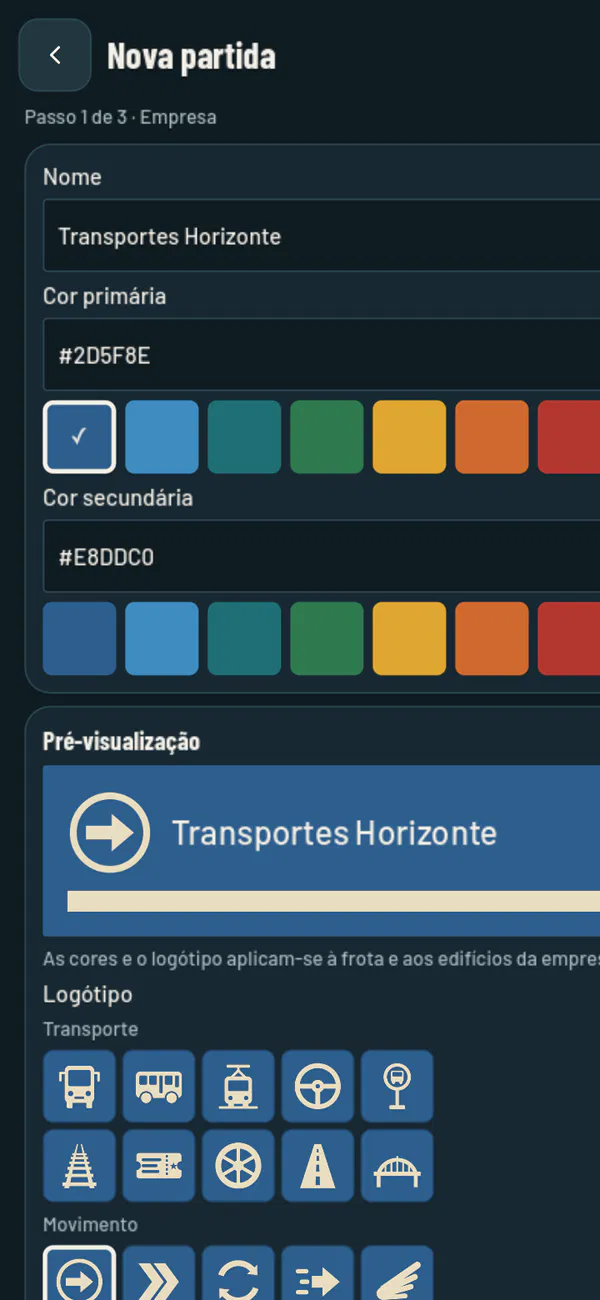
- Company: the name (up to 40 characters), the primary colour, the secondary colour and one of forty logos. The colours and the logo appear on the buses, the trucks and everything the company builds.
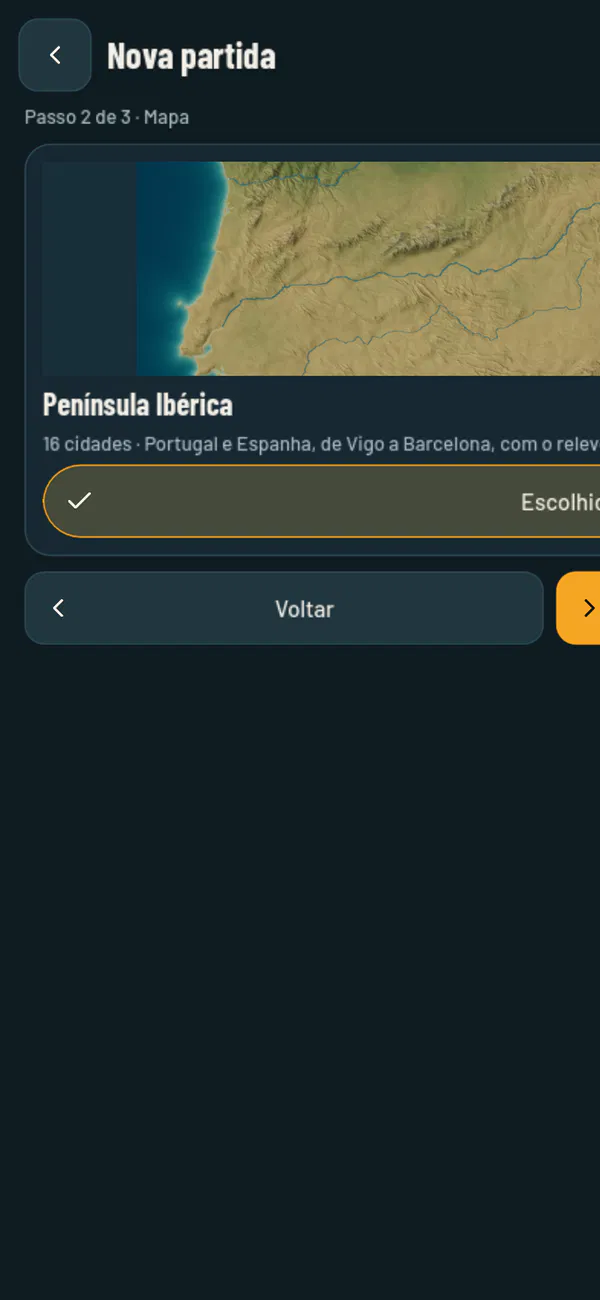
- Map: the published maps, each with its picture, name, number of cities, a description and the download size. The first is the Iberian Peninsula, with 16 cities.
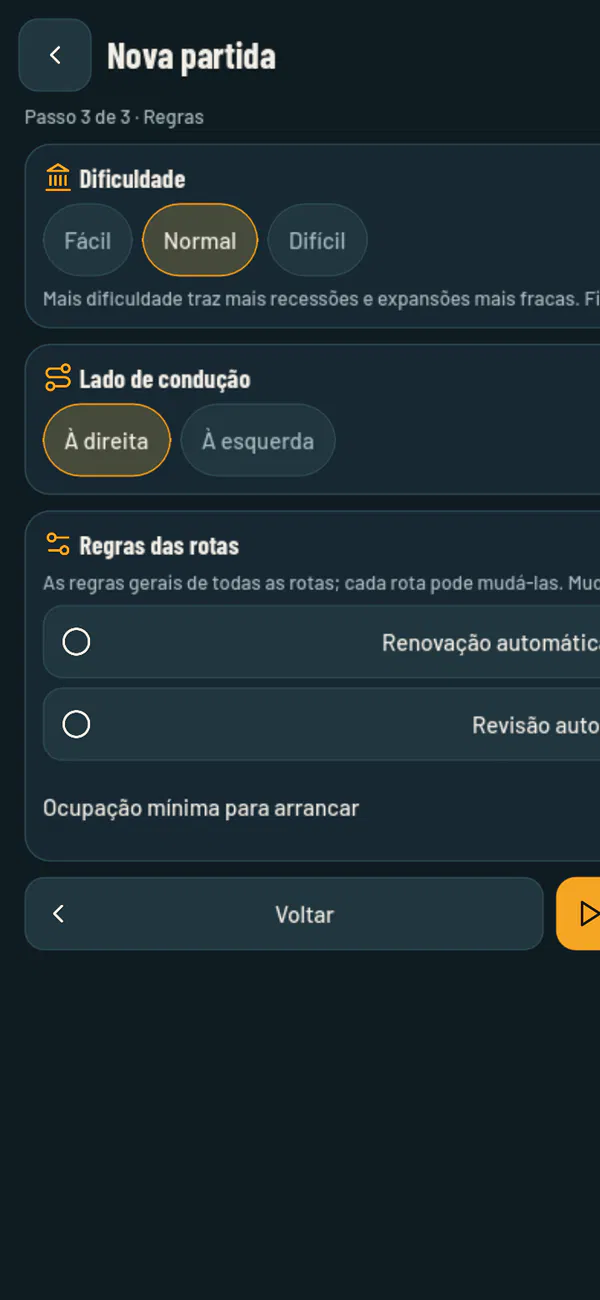
- Rules: the Difficulty (Easy, Normal or Hard, fixed for the whole game), the Driving side and the general route rules — Automatic renewal, Automatic servicing and Minimum load.
Start downloads the chosen map and the models it needs, if they aren't on the device yet, and opens the game. Every game starts in January 1980, with €2,000,000 and no debt.
The game screen
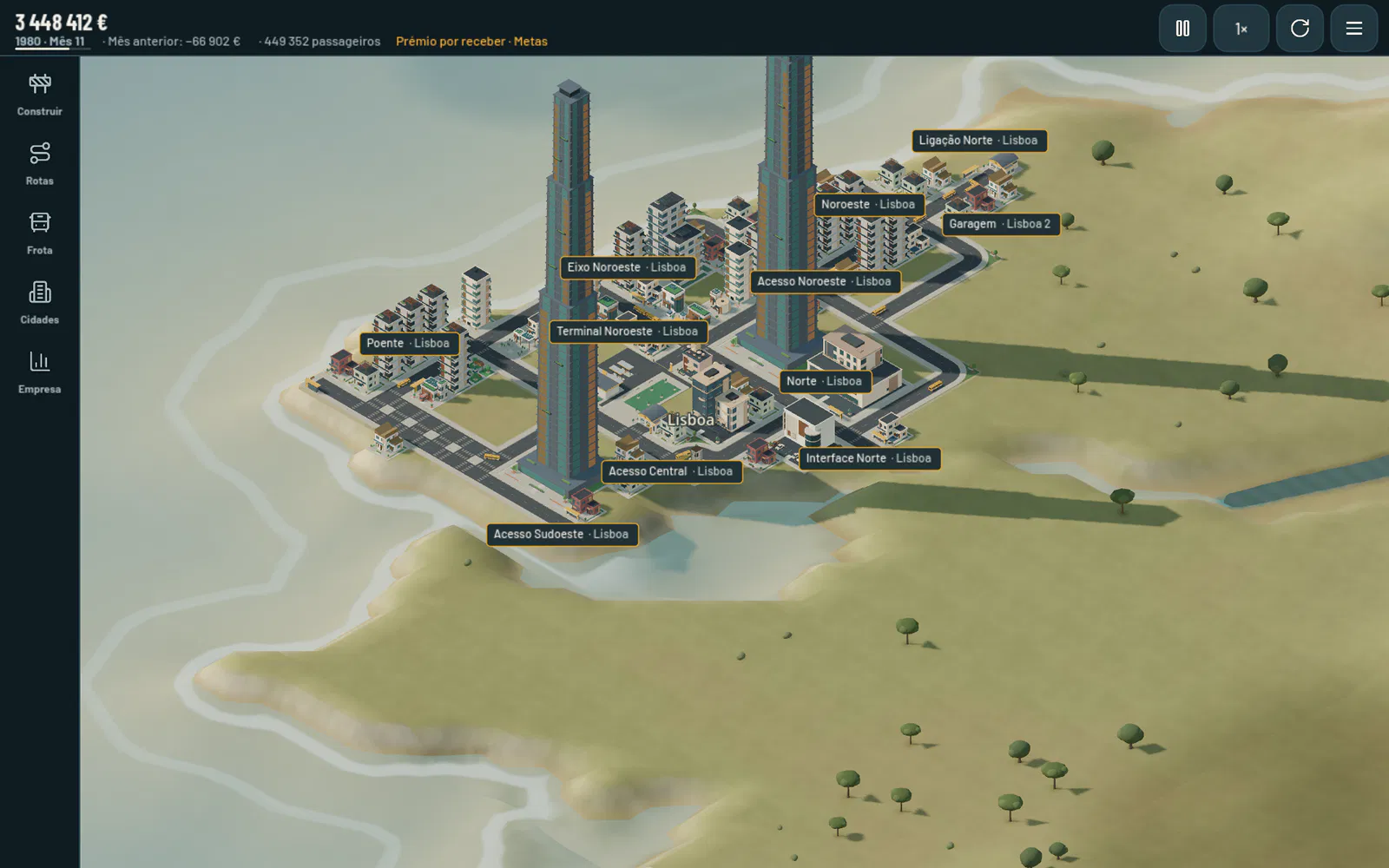
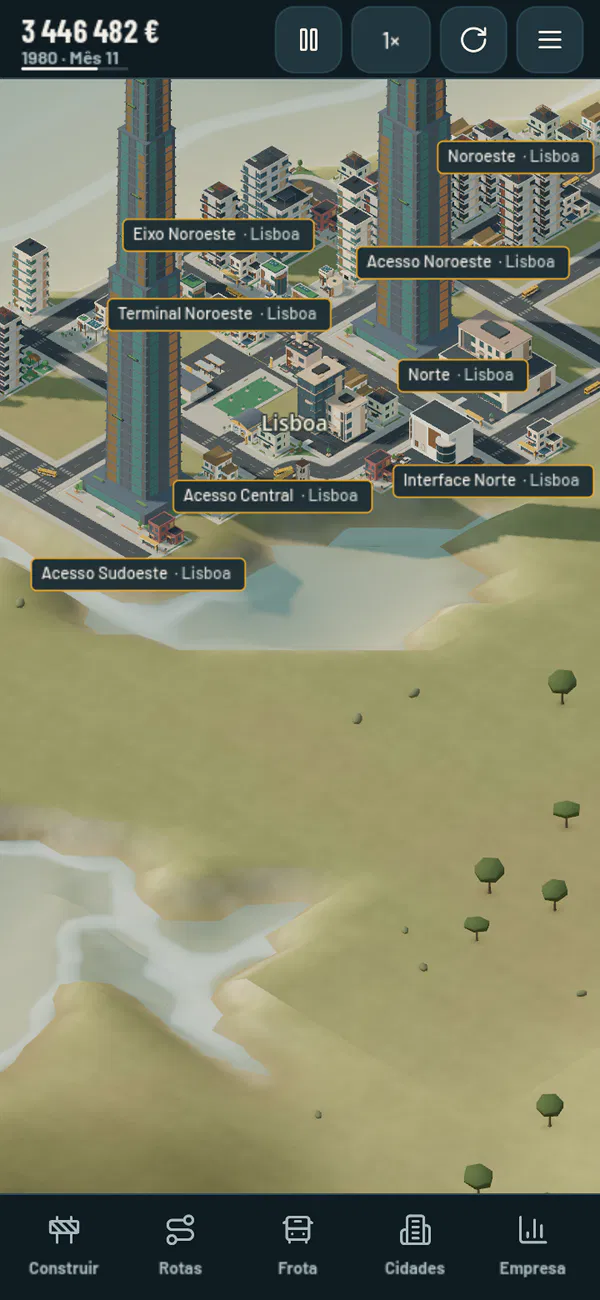
- The top bar shows the balance (in red when it's negative), the date, the next step, the Pause and speed buttons, the button for rotating the map and the Menu ☰.
- The five sections are Build, Routes, Fleet, Cities and Company. With the phone in portrait they sit in a bar at the bottom; in landscape and on a tablet, in a column on the left.
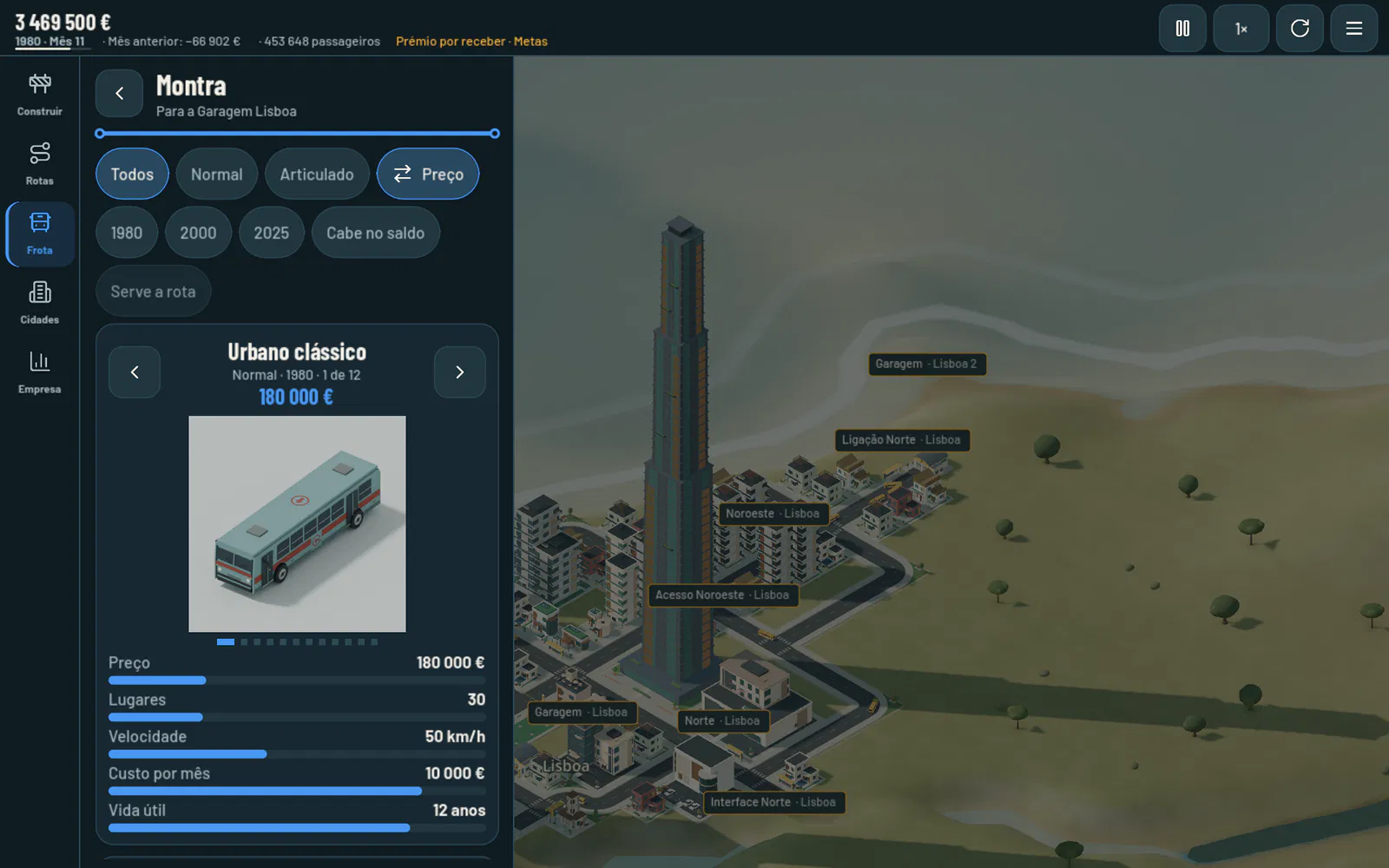
- Each section opens its own page. In portrait, the page fills the screen; in landscape and on a tablet, it opens in a panel beside the map, which stays visible and keeps running.
- Back takes you to the start of the section and then to the map. View on map shows you, on the map, the route, stop, depot or vehicle the page is about.
- Notices appear over the map for a few seconds and don't block your taps.
At the start, the top bar guides you step by step: “Build two stops near houses and shops.”, “Build a depot next to the road.”, “Create a route between the stops.” and “Tap the depot and buy a bus.” Each step is a goal with a prize (see Goals).
Menu ☰ and Options
- Game: the company card, Company identity (change the name, colours and logo without losing your network), Save, Main menu (saves and goes back to the main menu) and How to play.
- Options: the Look — the Metro line or Departures board theme, and the Automatic (follows the device), Light or Dark mode; the difficulty (display only) and the state of the global economy; the Driving side; Graphics, Economy or High; the Route rules; and the space taken up by downloaded maps and models, with Delete downloads.
- Credits: the authors, the licences and the Privacy policy.
The look and graphics settings apply to all games and are stored on the device.
Saving and loading
Each game has its own slot and never overwrites another. The game saves automatically at the end of every month, when you use Menu ☰ · Game · Save and when you go back to the Main menu.
Load game shows every game on the device, from newest to oldest, with the company's logo and name, the map, the in-game date, the balance and when it was last played. Open loads the game; Delete asks for confirmation and removes it from the device.
When you load a game, the game updates the models, metadata and rules to the latest published versions, downloading only what has changed. The map always stays the one the game started with. Without an internet connection, the game opens with what's already on the device. More in Support and FAQ.
2Time
The date is in the top bar, shown as “1980 · Month 1”, with a thin bar that fills up over the month. Every month has 30 days, and the day isn't shown.
- At 1× speed, a month lasts 5 minutes. The speed button cycles through 1×, 2× and 4×; the button next to it pauses and resumes the game.
- Only the calendar changes pace: vehicles always move on screen at the same speed.
- At the close of each month, the game does the company's accounts, grows the cities and industries and saves the game. At the close of December, the year's summary comes out.
- Vehicles arrive by era: the 2000 models in January 2000 and the 2025 models in January 2025, with a notice.
- While the game is paused, page subtitles end in “· Paused”, and you can build and plan as much as you like.
- Construction runs in real time, from 3 to 8 seconds per job, even when the game is paused or sped up (see Construction work).

3Stations
Tap Build in the section bar and choose the Transport tab. It has four tools:
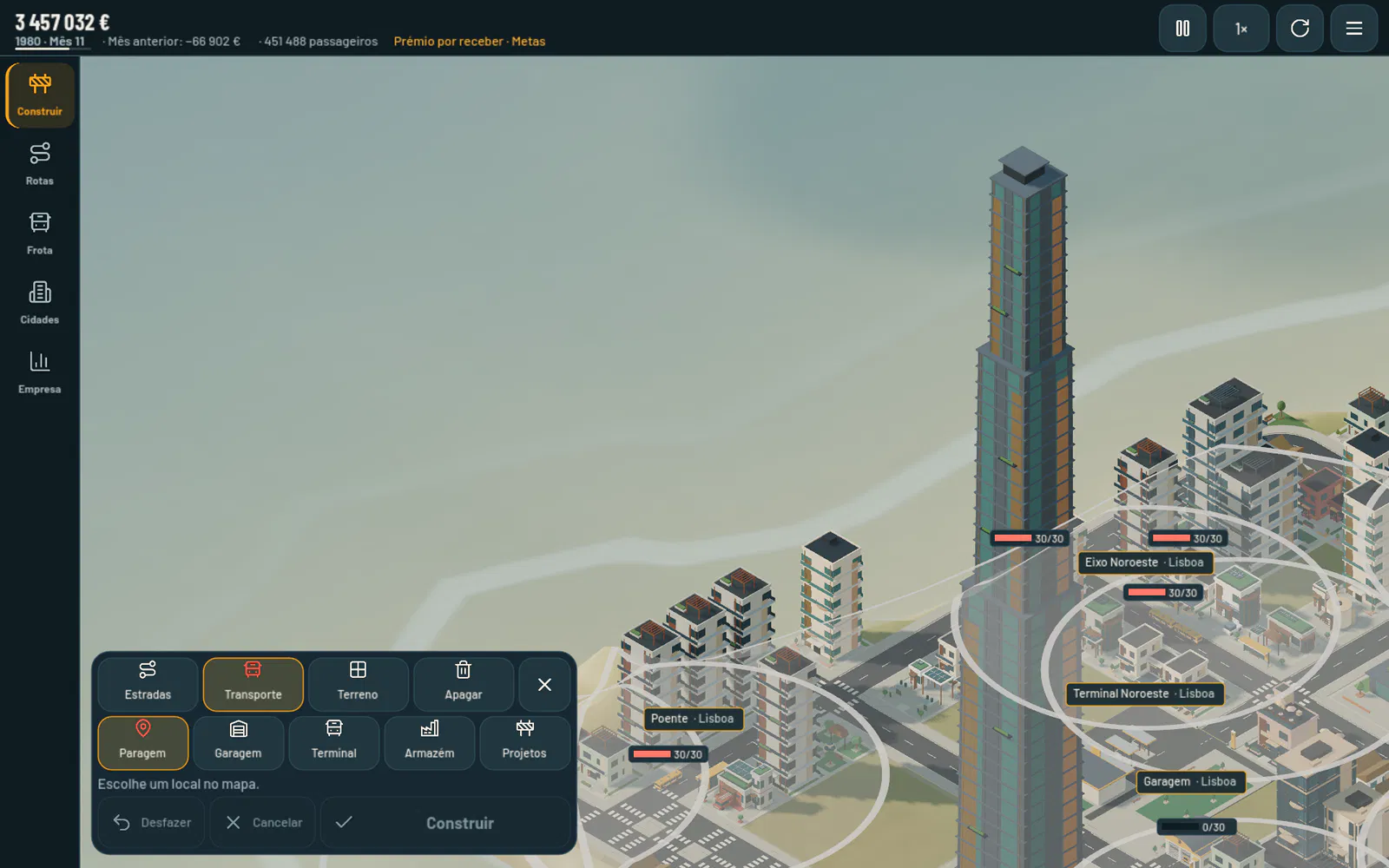
- Stop: tap a street in a city, near houses and shops. The circle shows the catchment area (3 cells), and the caption says roughly how many passengers a day it will get. Stops can only be placed inside cities; outside them, you use a terminal. Each stop is named automatically after its position and its city, for example “South Interchange · Lisbon”.
- Depot: tap free land next to a road. The depot is where buses and trucks are bought, where they're kept and where they're serviced.
- Terminal: takes up a 3×3 plot; Rotate changes which way it faces. It can be outside a city, in which case it counts as part of the nearest city. The simple terminal has 3 bays and takes standard buses. On the terminal's page, Expand shows the modern terminal on the map with its price: 6 bays, for any bus, articulated ones included. Routes between cities only link terminals.
- Warehouse: a 3×3 plot, inside cities only, which trucks drive straight through: the front must face a road, and there must be another road at the middle of the back side. It receives products from factories and collects the city's mail and valuables (see Freight and mail).
The price always appears before you pay, and in a city it includes the land bought from the city. Build pays and builds. Stops, terminals, depots and warehouses have a monthly cost; roads, bridges, tunnels and interchanges don't.
Tapping a stop or a terminal opens its page: how many passengers are waiting, last month's boardings and passengers who gave up, a button for each route that calls there and another for the city, New route from here, View on map, Delete and the stop's revenue. On a terminal, also the bays, the monthly cost and Expand.
4Roads and construction
The construction panel
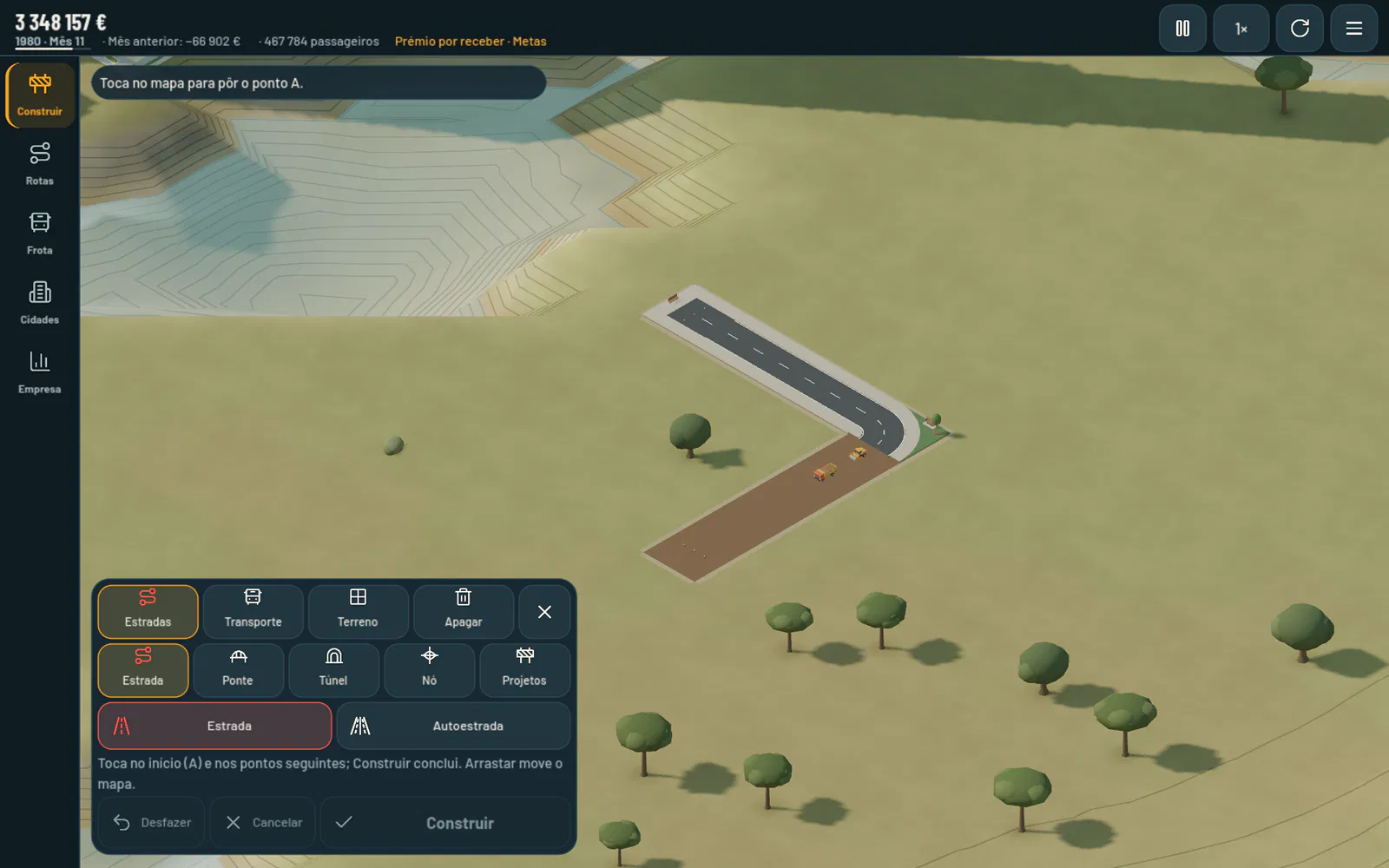
Build opens the construction panel over the map, which stays visible. It has three tabs — Roads (Road, Bridge, Tunnel and Interchange), Transport (Stop, Depot, Terminal and Warehouse) and Terrain (Lower, Raise and Level) — and Projects at the end of the tools. Delete and Exit sit in the corner.
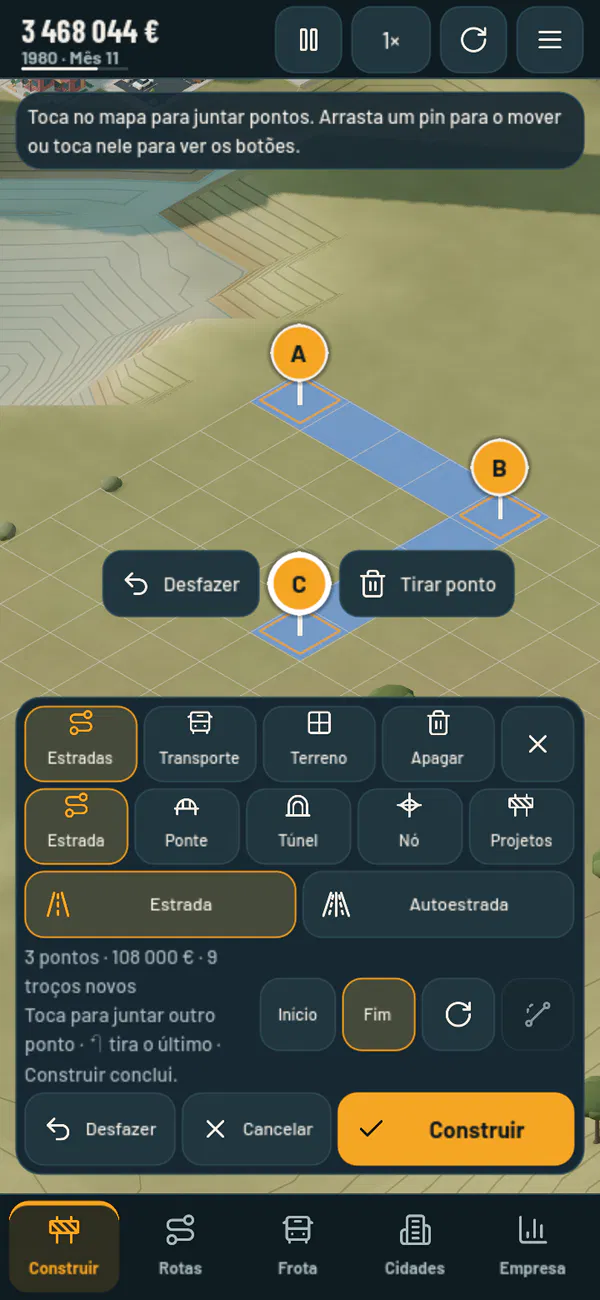
The last row is always in the same place: Undo, Cancel and Build, with the price (“Build · €12,000”). Nothing is paid while you draw: the price is charged once, when you tap Build. A strip at the top of the map tells you what to do next, for example: “Tap the map to place point A.”
Roads by points
With Road, each tap places a point, with a pin and a letter: A, B, C… The road runs through all the points in order, straight or with a 90° corner between each pair. Rotate switches the side of the corner. With only point A, Build builds that single piece. It works the same way inside and outside cities.
- Dragging a pin moves that point, and the road is worked out again.
- Tapping a pin opens two buttons: Undo and Remove point. Remove point joins the previous point to the next one, and the letters are reassigned.
- Points A, B, C… along the road are always pieces where you can connect another road or place a stop.
- The game takes care of the way through by itself: it flattens gentle slopes, puts bridges over water and valleys and tunnels through hills, all for a single price. The caption says what was added, for example “automatic bridge · automatic earthworks”.
Curves outside cities
Outside cities, every section of 3 or more cells with at least one end outside a city shows a + in the middle. Dragging the + turns just that section into a free-curve road, which passes wherever you lift your finger. Viaducts, tunnels and earthworks stay automatic.
- On a curved section there's a + between the curve points, up to three points per section.
- Tapping a curve point opens Remove point. A section with no curve points goes back to straight.
- Straighten turns every section back to straight.
- On the first road you draw outside a city, the + pulses for a few seconds so that you notice it.
To reach an industry, tap its plot: the point goes to the access cell, in front of the gate. With Road open, every industry that has no road yet has its access marked on the map, and the caption tells you when the road you've drawn connects it.
Motorways and interchanges
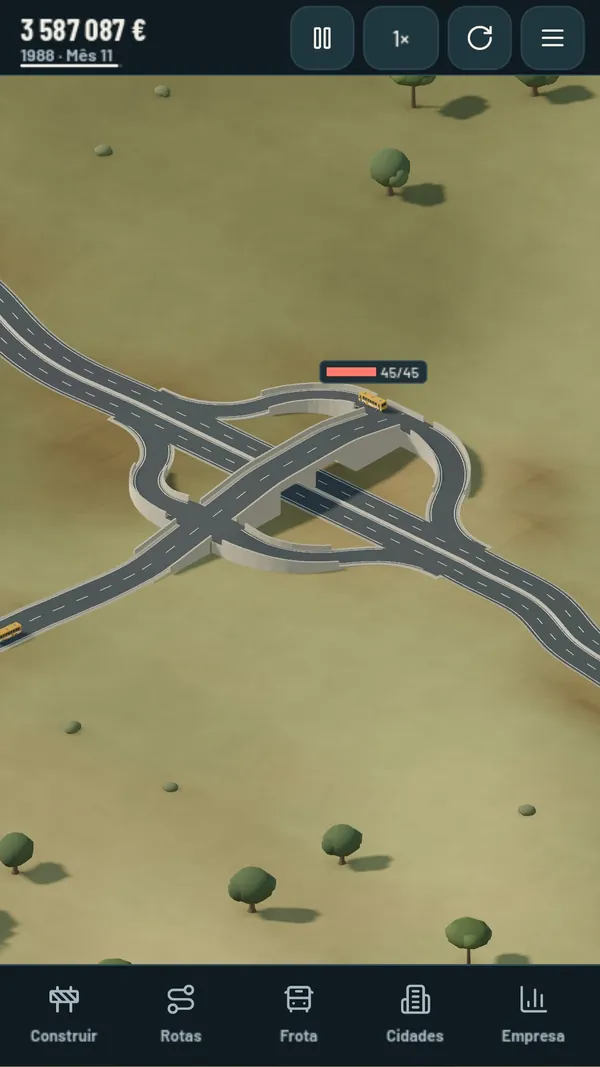
Choose Motorway in the Road row. It's drawn with the same points: it runs straight between them, with the corners rounded off automatically, and the + curves a section. It has two lanes in each direction, and vehicles travel 20% faster on it. At the points in between, the motorway passes through without a junction and doesn't connect to anything: to connect roads to a motorway, you use the Interchange.
Interchange places a motorway interchange. Tapping a motorway places the interchange at that spot, and the motorway carries on on both sides; on open ground, Rotate turns the interchange. There are four types:
- Exit: connects roads on both sides of the motorway, with exits and entries in both directions;
- Right side and Left side: the road is on one side only, and the opposite carriageway reaches it over a viaduct;
- Cloverleaf: joins two motorways that cross, with no at-grade junctions.
Bridges and tunnels
Bridge and Tunnel trace a free curve from A to the end. The + in the middle of each section adds a curve point (up to three), which you drag like the other pins, and Straighten removes them all.
- With Bridge you choose the type, from cheapest to most expensive: Timber, Concrete, Stone, Steel, Arch, Cable-stayed and Suspension. The type changes the price and the maximum speed. Motorway bridges are always concrete.
- With Tunnel you choose the minimum depth, 3 or 4 m. The ramps and slopes near the ends are dug out automatically.
- Switching between Road, Bridge and Tunnel keeps the ends and costs nothing.
Terrain
Lower, Raise and Level work on an area: drag across the map, or tap one corner and then the opposite corner. The preview shows the new terrain and the price.
- Tapping Lower or Raise again adds one more level.
- New area keeps the area you've done and lets you choose another.
- Show before and Show after compare the terrain.
- Apply pays and changes the terrain. Roads keep their height and water stays as it is.
Problems, Undo and Delete
- When something can't be built, the caption lists every problem, each with what to do about it, and the map marks each spot with a red cross. If your balance falls short, it says by how much.
- Undo goes back one action at a time, right back to the start of the drawing. Cancel erases the whole drawing.
- Delete, in the corner of the panel: tap a structure to select it, and the caption says what will be removed; Delete, on the last row, confirms. Dragging along roads selects a stretch. There's no refund.
- A stop can't be removed if it would leave a route with only one stop, nor can the only depot serving a route: the caption explains why.
- City streets can be deleted too. Company land can be given back to the city with Give back.
Construction work
Each structure opens a construction site on the map, in three phases:
- Marking out: earth on the ground, hoarding and cones.
- Working: the machines get to work and the structure takes shape before your eyes. On a road, the tarmac appears behind the roller; on a building, the structure rises inside the scaffolding, with a crane on the big sites; on a bridge, the piers go up and the deck advances from both banks to the middle; in a tunnel, there's a digger at each portal; on terrain, the bulldozer and the digger reshape the ground in three steps.
- Clearing up: the hoarding comes down and the machines leave.
A job lasts from 3 seconds (a stop, one cell of road) to 8 seconds (a terminal, a long bridge, a large motorway), in real time. Vehicles only use what's under construction once it's finished: until then they keep to the paths they already had, and any vehicle that needs the new work waits at the stop where it is. A station under construction only starts working at the end. Deleting carries out a demolition, which leaves rubble for a truck to take away. Buying or giving back land or a building doesn't open a site: you just see the company's flag or sign go up, in about a second.
Projects
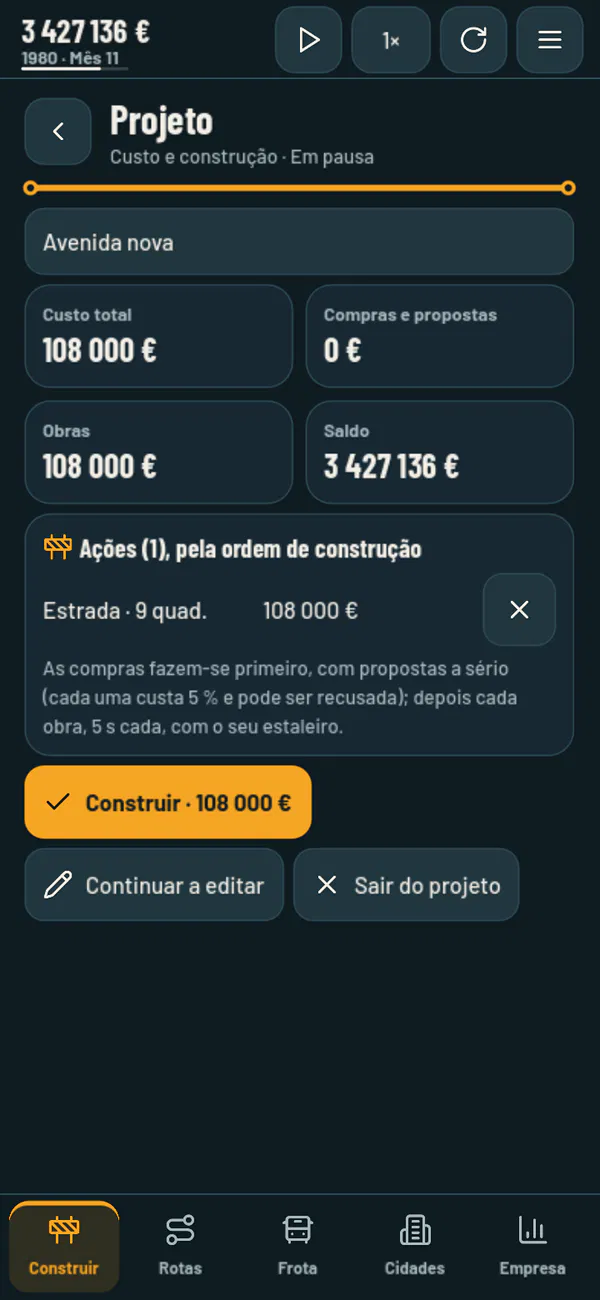
Projects, at the end of the tools, lets you plan big jobs without paying. In a project, time stands still and what you plan appears as a ghost: new structures in blue, what will be removed in red and what no longer fits in yellow. City buildings turn transparent so that you can see the terrain.
- You build with the usual tools, and nothing is paid. A strip below the top bar shows the project's name, the actions, the cost, Summary and Exit.
- The Summary shows the total cost, the balance and each action with its cost, plus purchase offers for the buildings in the way.
- Build carries out the purchases first and then the works, in the project's order. Each job starts when the previous one is halfway through.
- If the map has changed in the meantime and an action no longer fits, the project shows the conflict in yellow so that you can fix it.
5Routes
Creating a route
- Tap Routes → New route, or tap a stop, a terminal, an industry or a warehouse and choose New route from here.
- The first place you tap decides the type of route: stops and terminals make a passenger route; industries and warehouses, a freight route (see Freight and mail). Tapping the other type shows a warning, and the tap doesn't count.
- Tap the stops in the order they'll be visited. You can tap the stop or its label. Tapping the last one again, or ↶, removes it.
- Tap Create route. You need at least two stops.
A stop can appear more than once on the same route, but not twice in a row. After the last stop, the bus always goes back to the first. While you choose, a line shows the type of route, the average distance between the stations and the ticket, and it updates with every tap.
There are two types of passenger route:
- Urban: all the stops and terminals in the same city.
- Intercity: stations in two or more cities. It can only use terminals; a tap that breaks this rule is refused with “Routes between cities only link terminals.”
Depot first. No route can be created without a depot to serve it. If there isn't one, Create route is blocked, with the warning “First build a depot connected to this route by road”. For a passenger route, the depot must be in a city with stops on the route and have a road to them; for a freight route, any depot connected to the route by road will do.
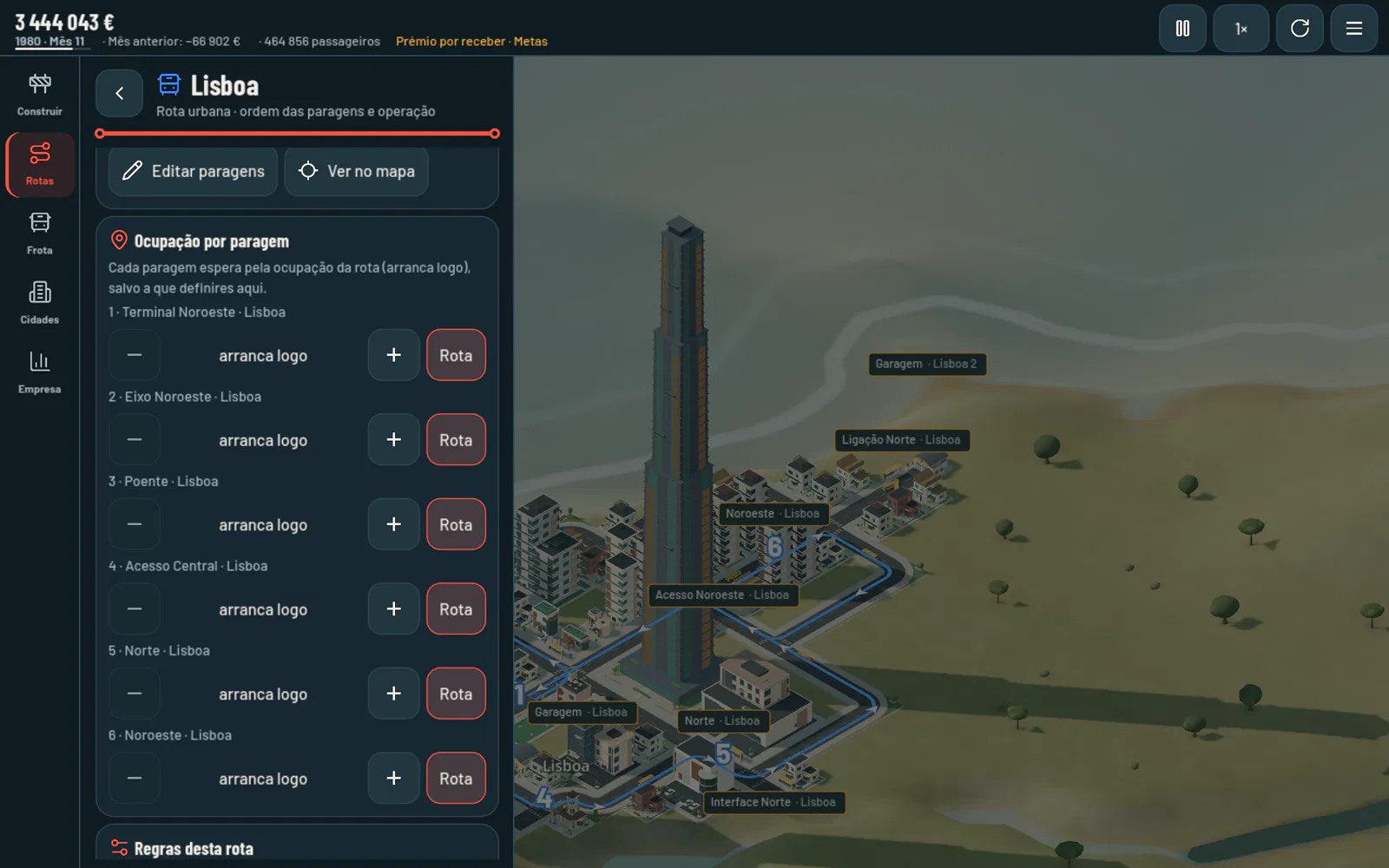
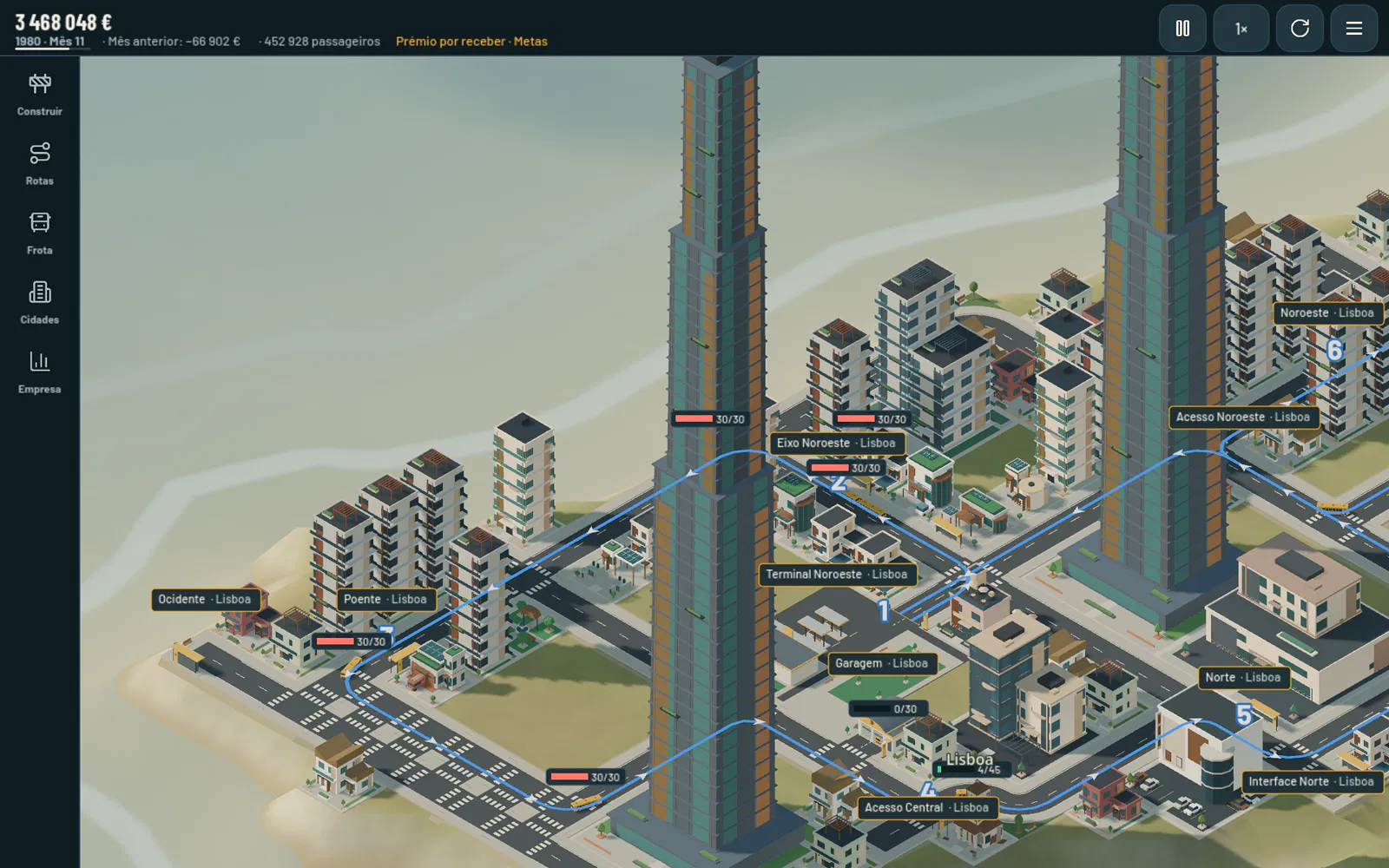
The name is automatic and comes from the cities, in the order they're visited: the first route in Lisbon is called “Lisbon”, the second “Lisbon 2”, and a route between Lisbon and Coimbra “Lisbon - Coimbra”. You can change it on the route's page; clearing the text restores the automatic name. On the map, the route is a line in its colour, in the lane the vehicles drive in, with arrows in the direction of travel and the number of each stop.
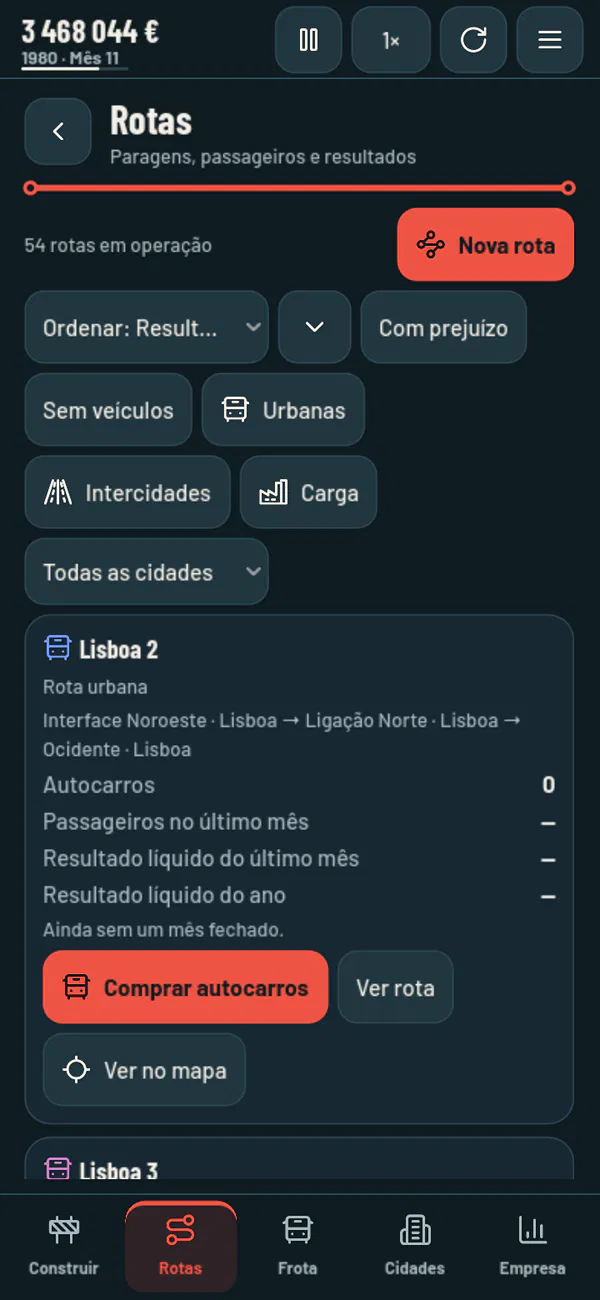
The Routes page
At the top, how many routes are in operation and New route. Each route has a card with its colour and the symbol for its type, the stops in order, the vehicles, the passengers (or tonnes) and the net result for the last month and the last 12 months, with View route and View on map.
- Sort by last month's result, the result for the last 12 months, passengers, vehicles or name.
- Filters: Loss-making, No vehicles, Urban, Intercity and Freight, and a city.
- A route with no vehicles has a Buy buses (or Buy trucks) button, which opens the nearest of the depots that serve it.
A route's net result is its ticket revenue (or freight revenue) minus the costs of its vehicles — operation, breakdowns and servicing — and its share of the monthly costs of the stations and depots it uses.
The route page
The name (editable); the route accounts for last month, this month and the last 12 months; the Stops, with each one's revenue, Edit stops and View on map; the Load by stop; the Rules for this route (automatic renewal, minimum load, automatic servicing and the ticket); the vehicles, each with its route selector; Bring a bus from another route…; the depots that serve the route; and Delete route, which only works when the route has no vehicles. When you edit the stops, vehicles on their way carry on to the next stop that still exists.
6The fleet
Buying vehicles
Buses and trucks can only be bought at a depot.
- Tap the depot on the map, or its label “Depot · Lisbon”.
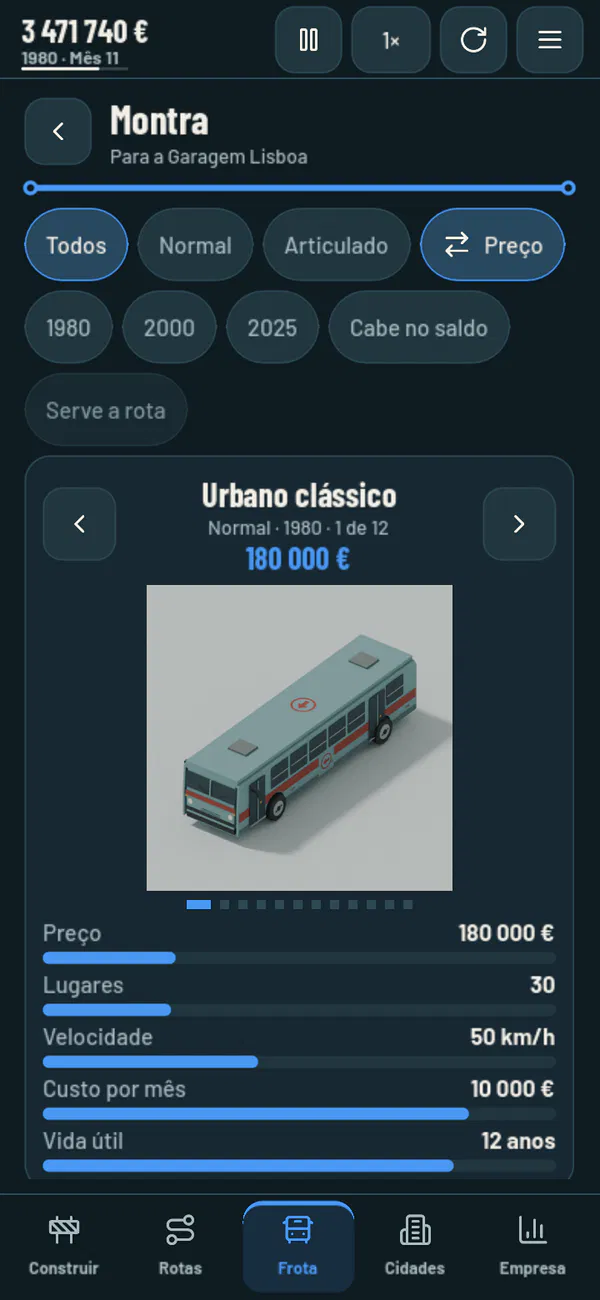
- On the depot's page, tap Buy buses (or Buy trucks). The Showroom opens.
- Switch models by swiping sideways, or with the arrows. Each model shows its price and five bars for comparison: price, seats (or load in tonnes), speed, monthly cost and service life.
- Choose the route from the route cards. If the depot serves only one route, it's already selected.
- Tap Buy. The vehicle leaves the depot for its route straight away.
The showroom has filters: Buses or Trucks; the type (Standard or Articulated; Small rigid, Large rigid or Semi-trailer); the order (price, seats, speed or monthly cost); the era (1980, 2000, 2025); Affordable; and Fits the route.
Buying rules
- A depot serves passenger routes that have stops in its city and a road to them — to serve Madrid, you need a depot in Madrid. It also serves any freight route connected to it by road.
- Each vehicle belongs to the depot where it was bought: it sets out from there, is serviced there and can only switch to routes that depot serves.
- Each model is only sold in its own era: the 1980 models from 1980 to 1999, the 2000 models from 2000 to 2024 and the 2025 models from 2025 onwards. Future models appear locked, with “On sale in 2000”.
- Articulated buses only run routes where they never need to turn round, and only stop at modern terminals.
- Trucks only serve freight routes, and buses only passenger routes.
Maintaining the fleet
- Each vehicle has a monthly operating cost. Stop takes it out of service while it keeps paying 35% of that cost; Resume puts it back on its route.
- Condition drops with use. A breakdown interrupts service and costs 0.5% of the vehicle's price.
- Service (€500): the vehicle finishes its trip, goes to its depot, spends two days in the workshop and comes back in 100% condition.
- Sell returns 70% of the price of a new vehicle, less as it ages, down to 20% at the end of its service life.
- Route rules take care of all this for you: Automatic renewal replaces the vehicle with a new one near the end of its service life, Automatic servicing sends it to the workshop when its condition drops, and Minimum load makes the bus wait for passengers before it departs. They apply to all routes (in Menu ☰ · Options · Route rules), and each route, and each stop on a route, can have its own.
The Fleet page
At the top, how many buses and trucks you have and Pause, which pauses and resumes the game. Then the depots, each with its vehicles and View on map; the Urban, Intercity and Freight filters; and a card for each vehicle, with a live image, the route selector, its status (seats taken or tonnes, condition and depot), its result and the View on map, Service, Stop (or Resume) and Sell buttons. Changing the route in the selector takes effect at the next stop.
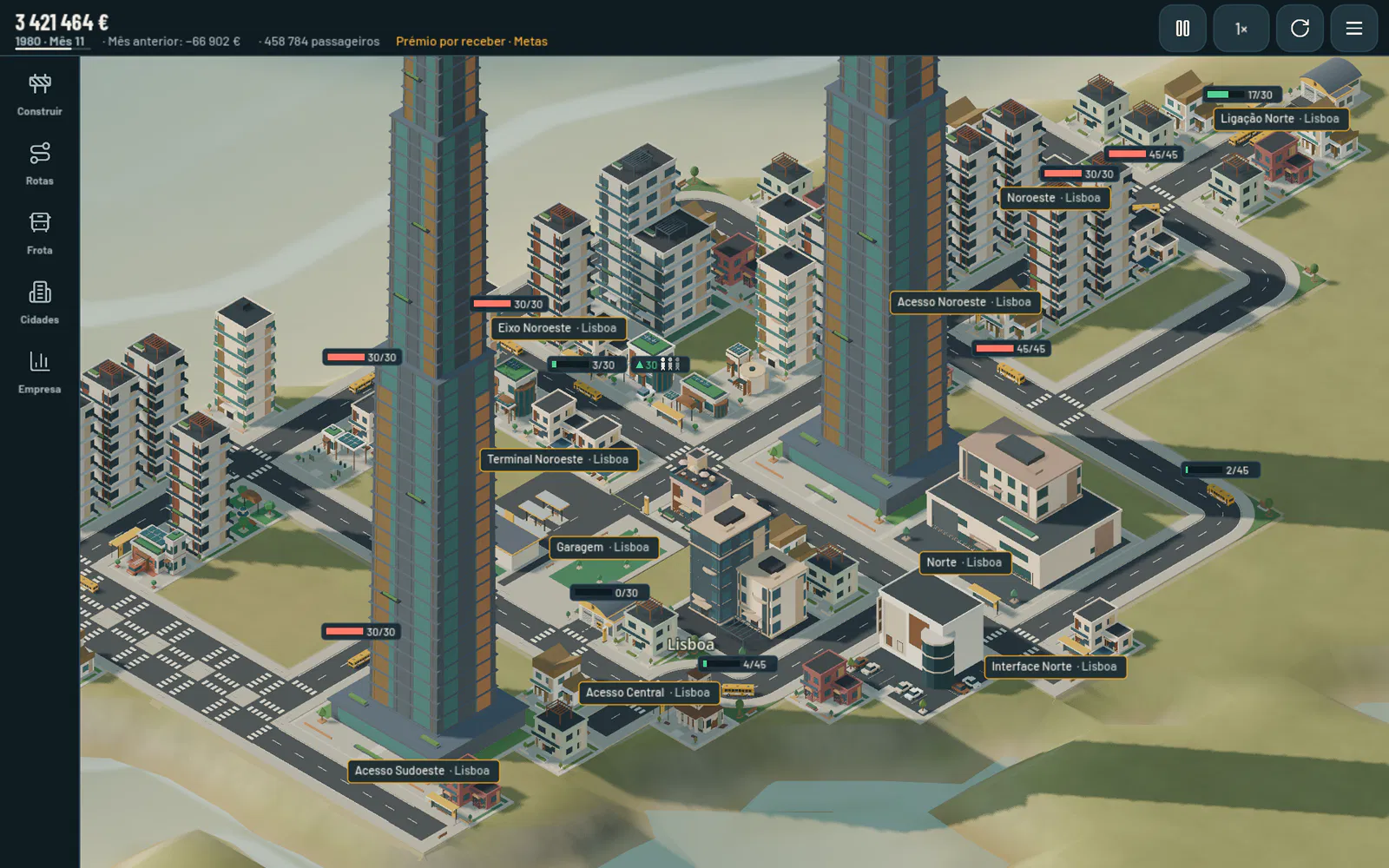
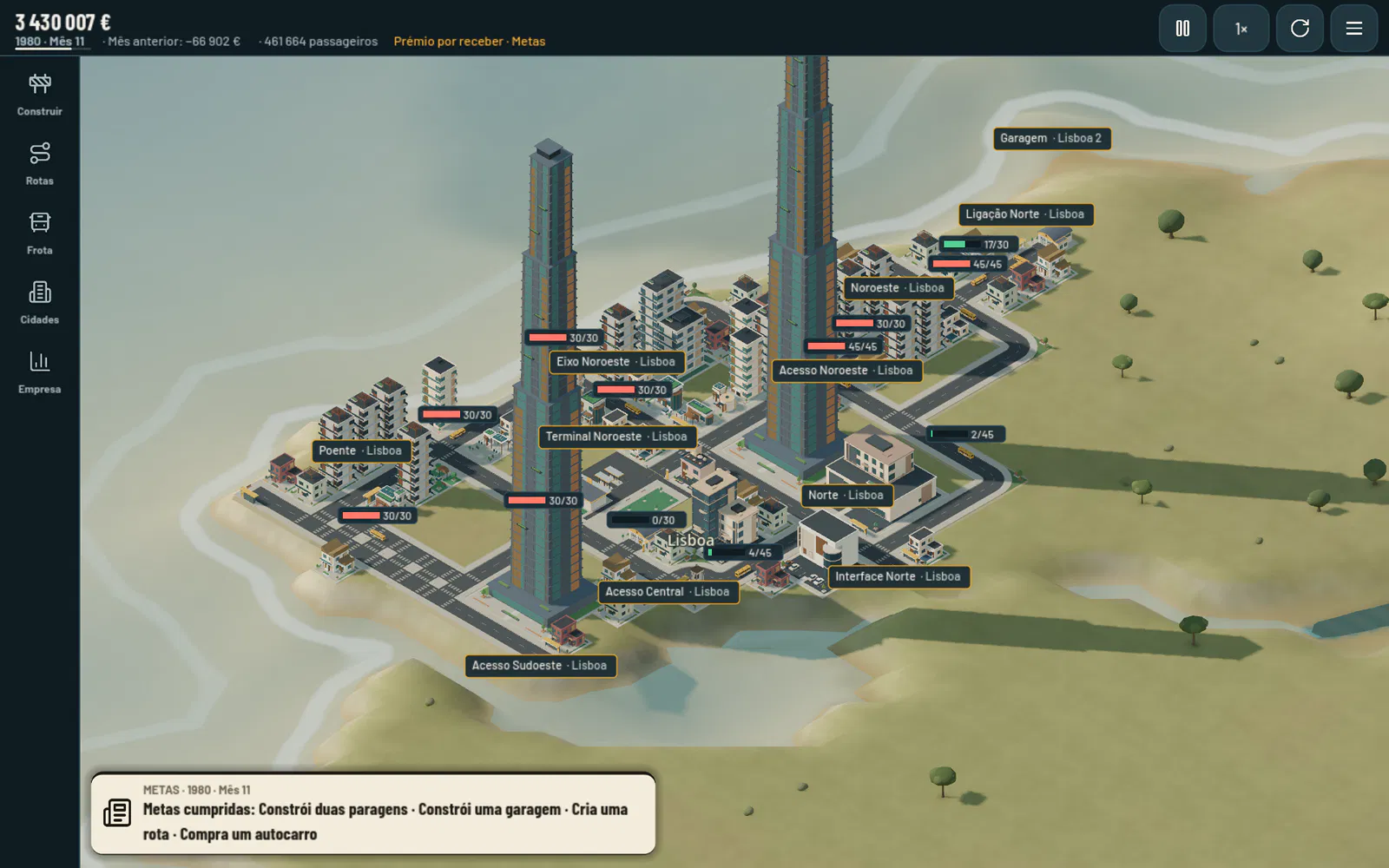
Up close, buses have an indicator above them: the seats taken (“18/30”), in green, amber or red depending on how full the bus is; ▼ and ▲ when passengers get off and on; an hourglass when it's waiting for the minimum load; and the amount collected on arrival (“+€803”).
7Cities
Passengers
Passengers appear at the stops, coming from the houses and shops around them, and wait for the bus. Anyone who waits too long gives up. Each passenger pays the route's ticket for every trip from one stop to the next, and the fare is collected when the bus reaches the next stop (see Money).
How cities grow
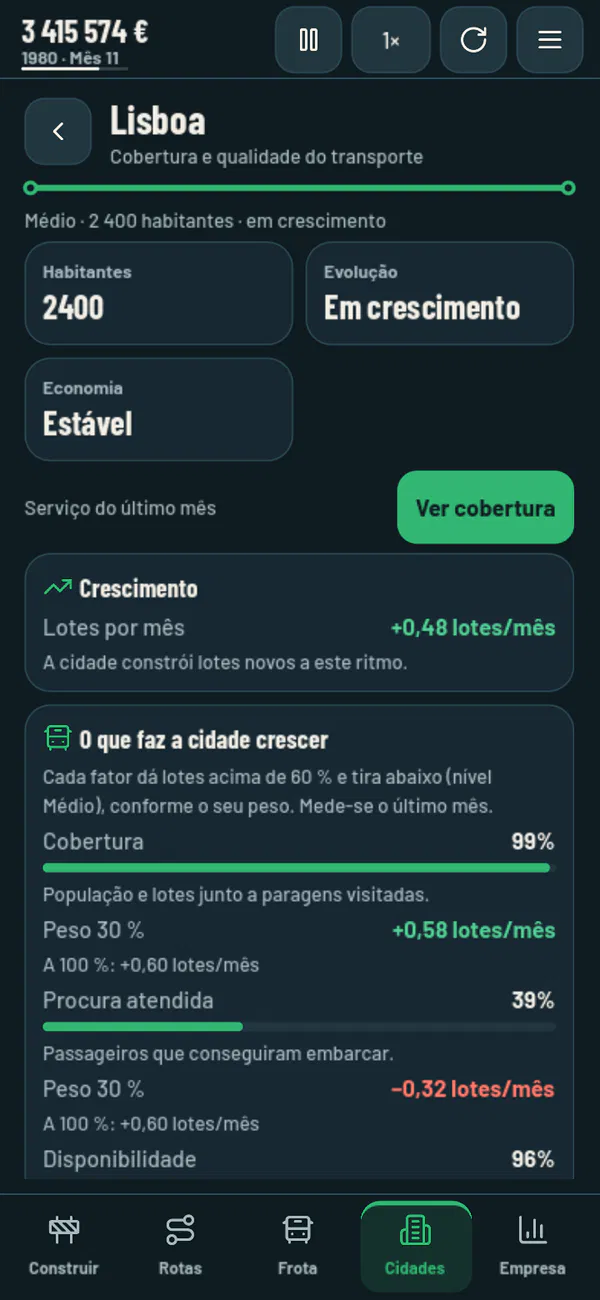
Each city has a level — Easy, Medium or Capital — and a trend: Growing, Stable, Declining or Recovering. Growth is a figure, in plots per month, based on the last month:
- each factor of your service — Coverage, Demand served, Availability, Regularity and Tickets and fleet — adds plots when it's above the level's neutral point (50% in an Easy city, 60% in a Medium one, 70% in a Capital) and takes them away when it's below;
- Deliveries of products to the city's warehouses add plots (see Freight and mail);
- the Global economy adds or takes away.
When the total is positive, the city gains new plots. When it's negative, the city doesn't lose buildings but gradually gains abandoned ones, with no inhabitants; when it turns positive again, the abandoned buildings are the first to recover. A city where you have no stops or terminals doesn't go into decline.
The global economy goes through phases on its own — stable, growing and shrinking. When it shrinks there are fewer passengers and cities lose plots; when it grows, they gain them. A higher difficulty brings more downturns and weaker growth.
The Cities page
It has two tabs, Cities and Industries. The list shows the cities where you're present first, from largest to smallest, with a box to search by name, the order (presence, name, inhabitants or growth) and filters by presence, level and trend. Each card has the level, inhabitants, stops, trend and plots per month, with View city and View coverage.
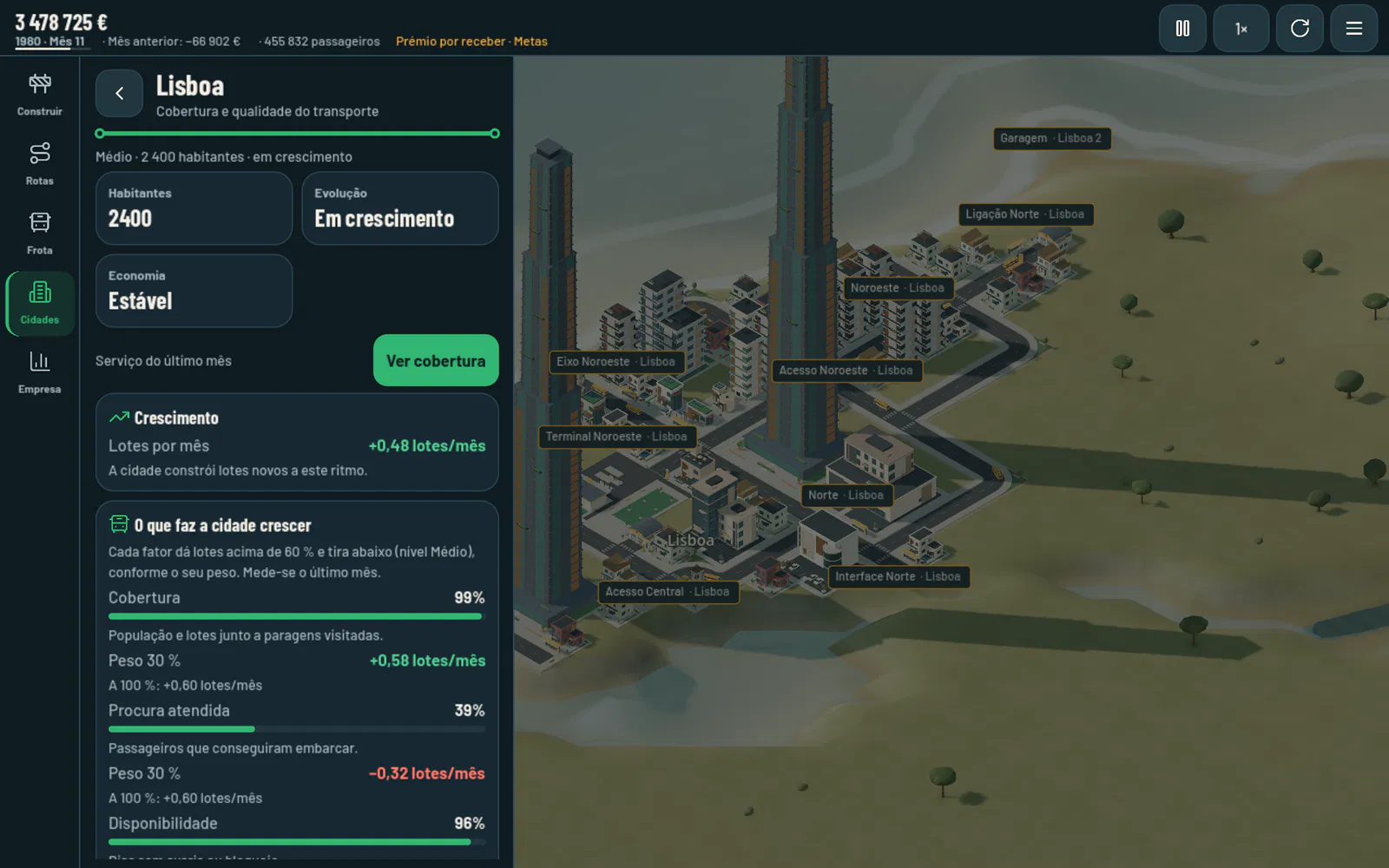
The city page shows last month's service, growth in plots per month and What makes the city grow: each factor with its measurement, its weight, the plots it adds or takes away and how much it would give at 100%. Below that are the city's stops, which you can sort and open with a tap.
View coverage takes you back to the map with the city coloured in: blue where there's service, grey where there's only stop range, and amber where there's no coverage.
Land and buildings
With the tools closed, tapping a building or a plot in a city opens the Property page: what it is, the average price and the company's service there. Free land is bought at its price. For a building you make an offer, which costs 5% of the amount offered even if the owner turns it down; good service in the city helps get it accepted. Whatever the company buys carries its flag or sign, can be deleted and can be given back to the city.
8Freight and mail
Industries
Outside the cities there are 25 industries, always in the same places: the sources produce a raw material and the factories turn it into a product for the cities.
| Source | Raw material | Factory | Product |
|---|---|---|---|
| Farm | grain | Food factory | food |
| Forest | logs | Sawmill | planks |
| Forest | logs | Paper mill | paper |
| Mine | ore | Steelworks | steel |
| Oil well | oil | Refinery | fuel |
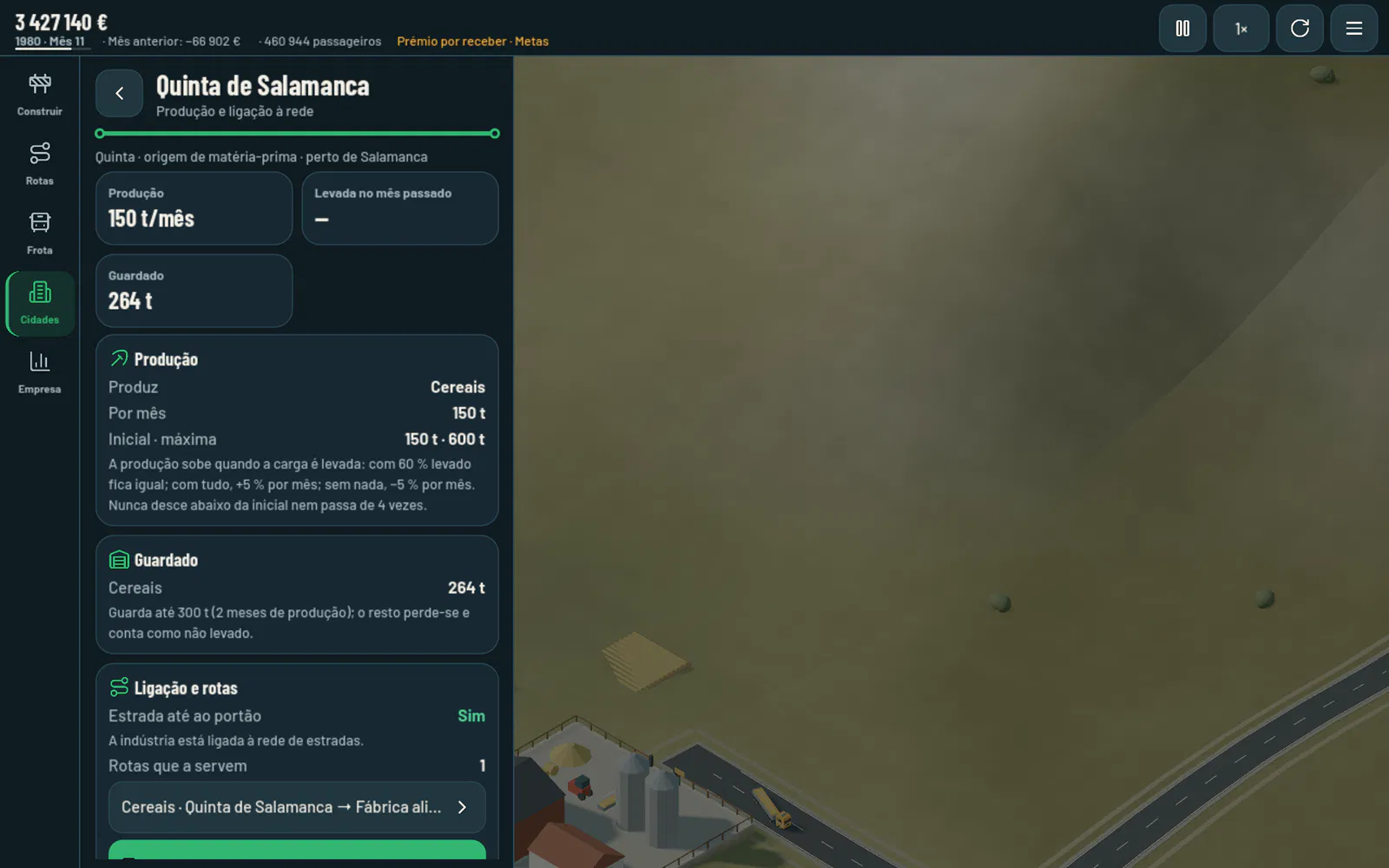
- Each source produces every month and stores up to two months' output. Output rises when the freight is collected well and falls when it's left waiting, but never below the starting level or above 4 times it. No industry ever closes.
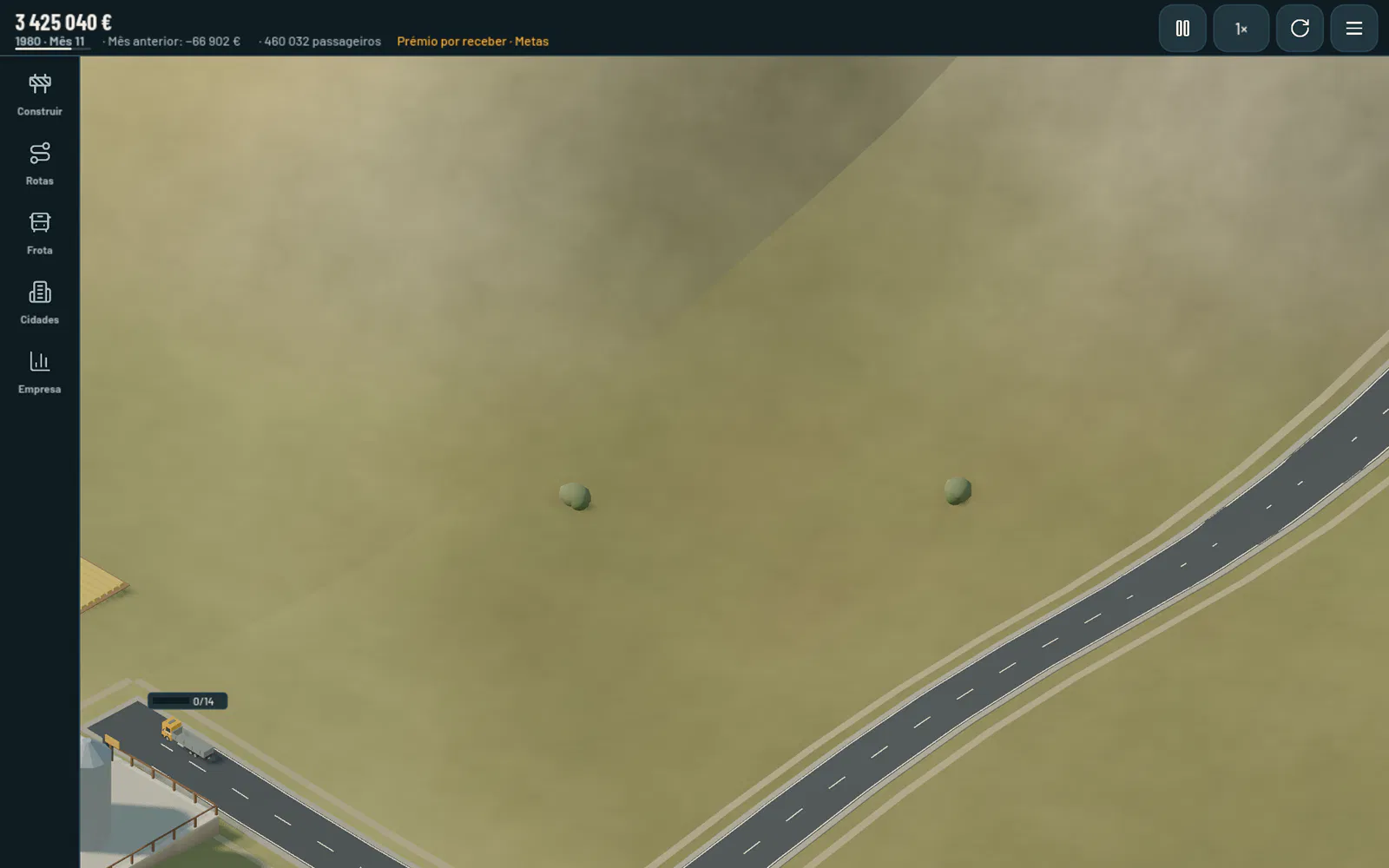
- A road that reaches the access cell, in front of the gate, connects the industry to the network: the gate becomes a freight stop.
- Cities · Industries lists them all, with their output, the percentage carried and whether there's a road to the gate. A tap opens the industry's page.
Freight routes
In Routes → New route, first tap an industry connected by road (the source) and then the destination: a factory that accepts its cargo, or a warehouse.
- The route carries the cargo that the source produces and the destination accepts. With no cargo in common, or no road between the two, the route is refused and the reason given.
- The truck loads up to the Minimum load to depart (100% to begin with; if no new cargo comes in for a while, it leaves with what it has), delivers at the destination and returns empty.
- Each tonne delivered pays a fixed amount plus an amount per km, which the top line of the new route shows.
- The factory turns what it receives into its product, which other trucks can take to a warehouse.
- Any depot connected to the route by road buys trucks for it. The body depends on the cargo — tanker, tipper, flatbed, log carrier, refrigerated or curtainsider — and changes by itself.
Warehouses and deliveries
The Warehouse is built in a city and receives food, planks, paper, steel and fuel. Each product that reaches a city during the month, from 1 tonne per 100 inhabitants upwards, gives it an extra 10% of its level's plots per month, up to 50% with all five products.
Mail and valuables
Each warehouse collects mail from the buildings within 12 cells and valuables from the shops, and holds them for up to two months. A freight route that starts at the warehouse takes them to the warehouse of another city: choose Mail or Valuables on the new route. Mail travels in any truck; valuables only in rigid trucks. They pay well per tonne and km, but they don't make cities grow.
9Goals
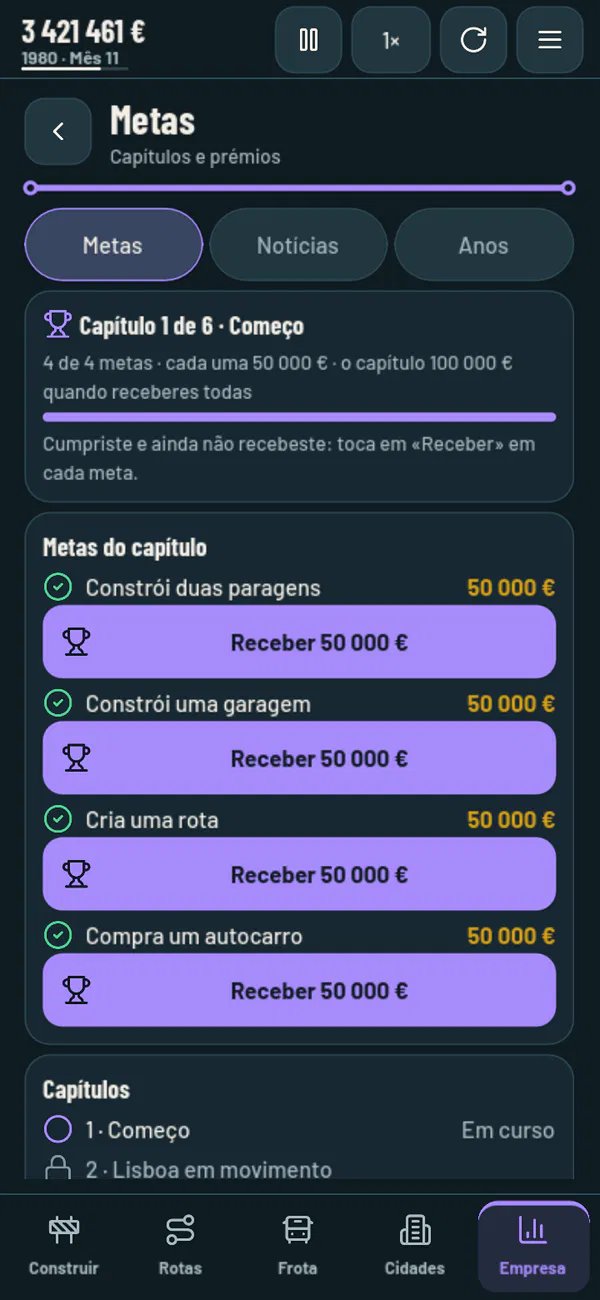
The Goals come in six chapters and teach you everything in the game. Open them by tapping the next step in the top bar, or the Goals button on the Company page.
| Chapter | Prize per goal · for the chapter | Goals |
|---|---|---|
| 1 · Getting started | €50,000 · €100,000 | two stops; a depot; a route; a bus |
| 2 · Lisbon on the move | €100,000 · €200,000 | 3 urban routes in Lisbon; 10,000 passengers in a month in Lisbon; Lisbon coverage at 50%; a month closed in profit; a route rule switched on |
| 3 · Between cities | €150,000 · €300,000 | a terminal in Lisbon and another in Évora; Lisbon and Évora connected by road; an intercity route between the two; a property bought in a city |
| 4 · Major works | €250,000 · €400,000 | a bridge; a tunnel; a motorway interchange; Lisbon and Coimbra connected by motorway; a project completed; a loan from the Bank |
| 5 · Portugal connected | €350,000 · €500,000 | a network in Porto, Coimbra and Faro; Coimbra and Porto connected by motorway; an expanded terminal; an articulated bus on a route; 25 buses; Lisbon growing by +2 plots per month |
| 6 · Iberia | €500,000 · €500,000 | Lisbon and Madrid connected by road; an intercity route between the two; a network in Madrid, Seville and Barcelona; 200,000 passengers in a month; a year with a profit of €1,000,000 or more; a year with no debt |
- You complete a chapter's goals in any order you like, with no time limit. A goal already met when the chapter opens counts as completed straight away.
- The prize isn't paid in automatically: tap Claim on the Goals page. Once all the chapter's goals have been claimed, the chapter prize comes in too and the next chapter opens.
- Prizes are company revenue, on the Prizes line, and count towards the year's result.
- After the sixth chapter, the aim is a profitable company and a growing network.
News and the year summary
The game has a fictional newspaper, with headlines from each decade that feature the cities on the map. The news explains what's going on: changes in the global economy, how your cities are doing, the arrival of new models and the company's milestones. Stories appear in a newspaper strip at the bottom, over the map, for about 10 seconds, without pausing the game; the others wait in the News tab, unread.
At the close of December, the year's summary comes out in the Years tab: the accounts compared with the previous year, the network and the fleet, the cities that grew most and the economy, plus the year's headlines and goals.
10Money
Revenue
- Tickets: each passenger pays the route's ticket for every trip from one stop to the next. By default it costs €1 plus €0.065 per km of the average distance between the route's stations (one map cell is 2.5 km). Each route can have its own ticket, in Rules for this route: a dearer ticket earns more per trip but loses passengers and takes plots away from the cities; a cheaper one wins passengers and helps the cities.
- Each passenger you see on board counts as 28 in the accounts, so that a 5-minute month is worth a full month of timetabled service.
- Freight, Mail and Valuables: per tonne and per km, on arrival.
- Prizes from goals.
Costs
Vehicles (operation, breakdowns and servicing), stations, depots and warehouses (a monthly cost each) and interest. Roads, bridges, tunnels and interchanges have no monthly cost.
The Company page
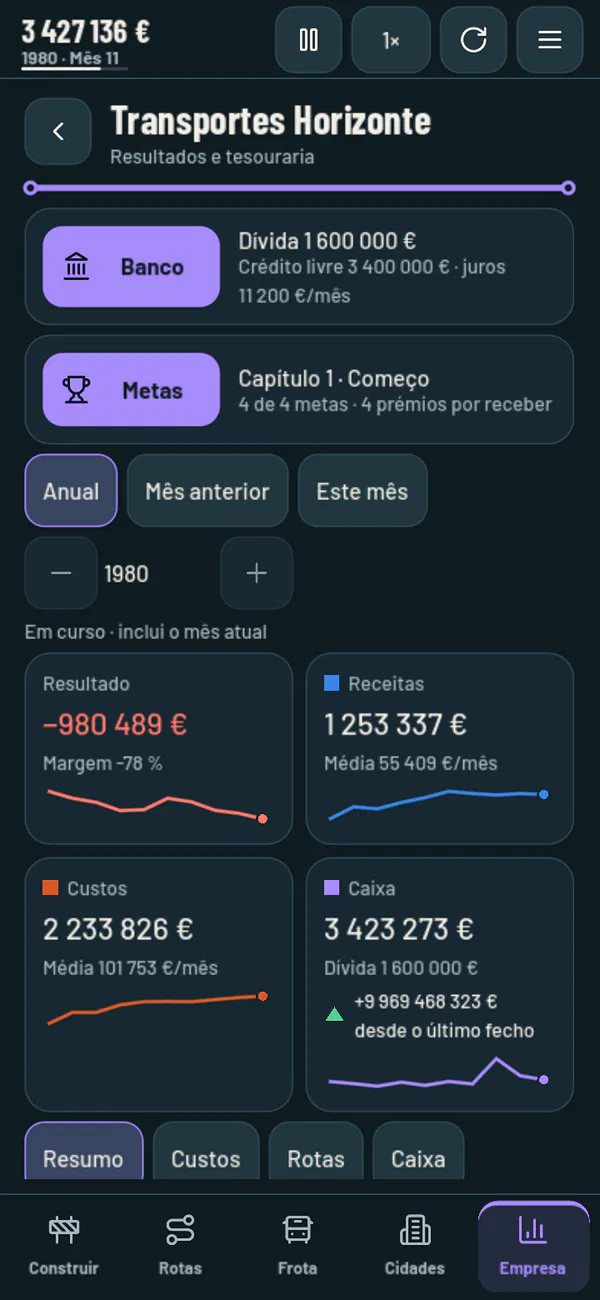
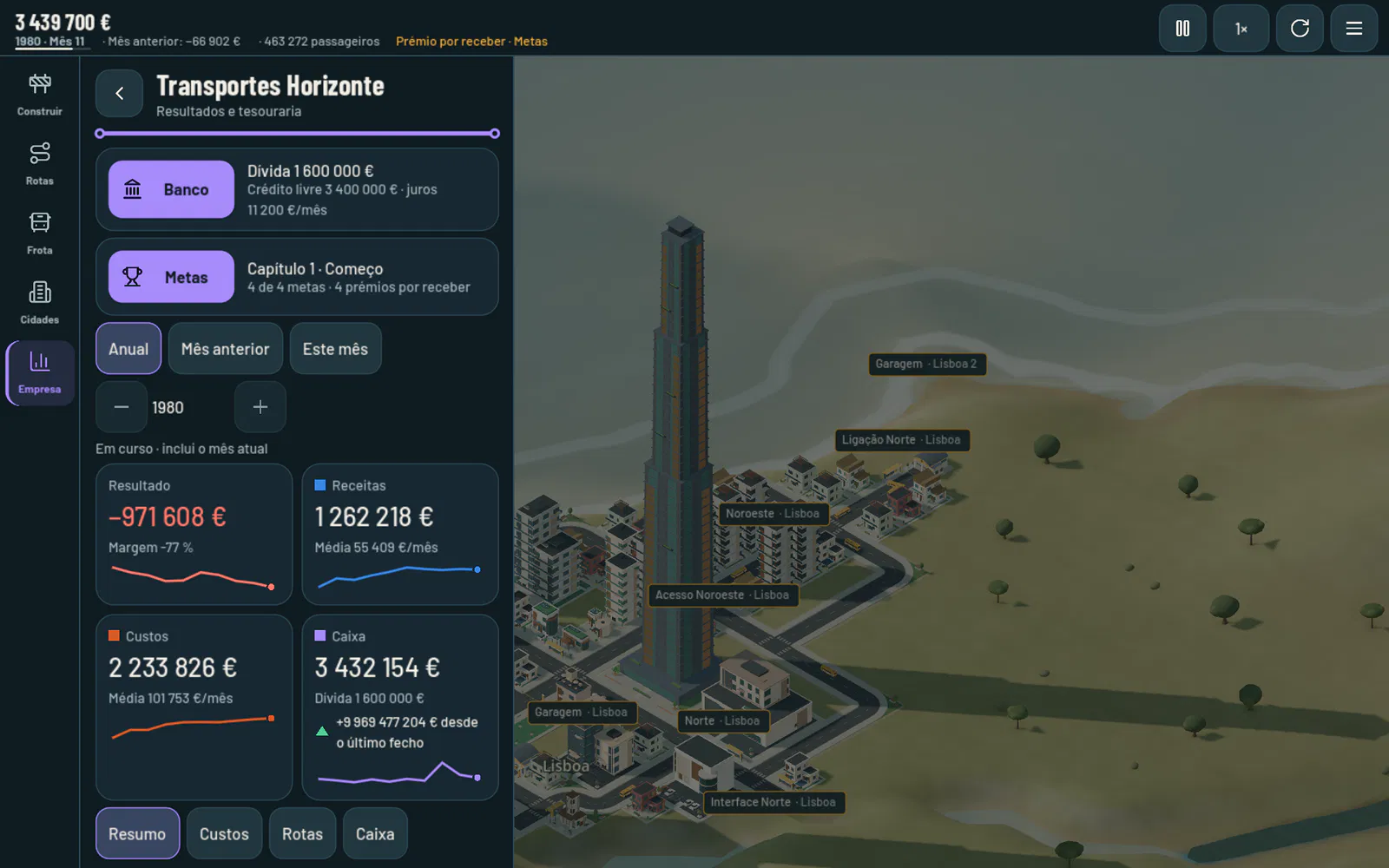
The title is the company's name. At the top, the Bank and the Goals; then the period (Annual, Last month or This month) and four indicators — Profit, Revenue, Costs and Cash — each with a comparison and a trend line. The Summary, Costs, Routes and Cash tabs show the charts: revenue in blue, costs in orange, and profit and loss with ▲ and ▼.
Bank
- You take out loans in multiples of €100,000, up to a limit of €5,000,000.
- Interest is 0.7% a month, charged at the close of each month on that day's debt.
- If a month closes with a negative balance, the bank lends €100,000 at a time, up to the limit.
- Repay pays off debt with the balance you have.
Insolvency
The company becomes insolvent at the close of the year when the balance is negative, credit is at its limit and the last two closed years both made a loss. The top bar warns you beforehand with “Insolvency risk”. An insolvent company only shows the Game over page, with the results of the last few years and the button to the Main menu.